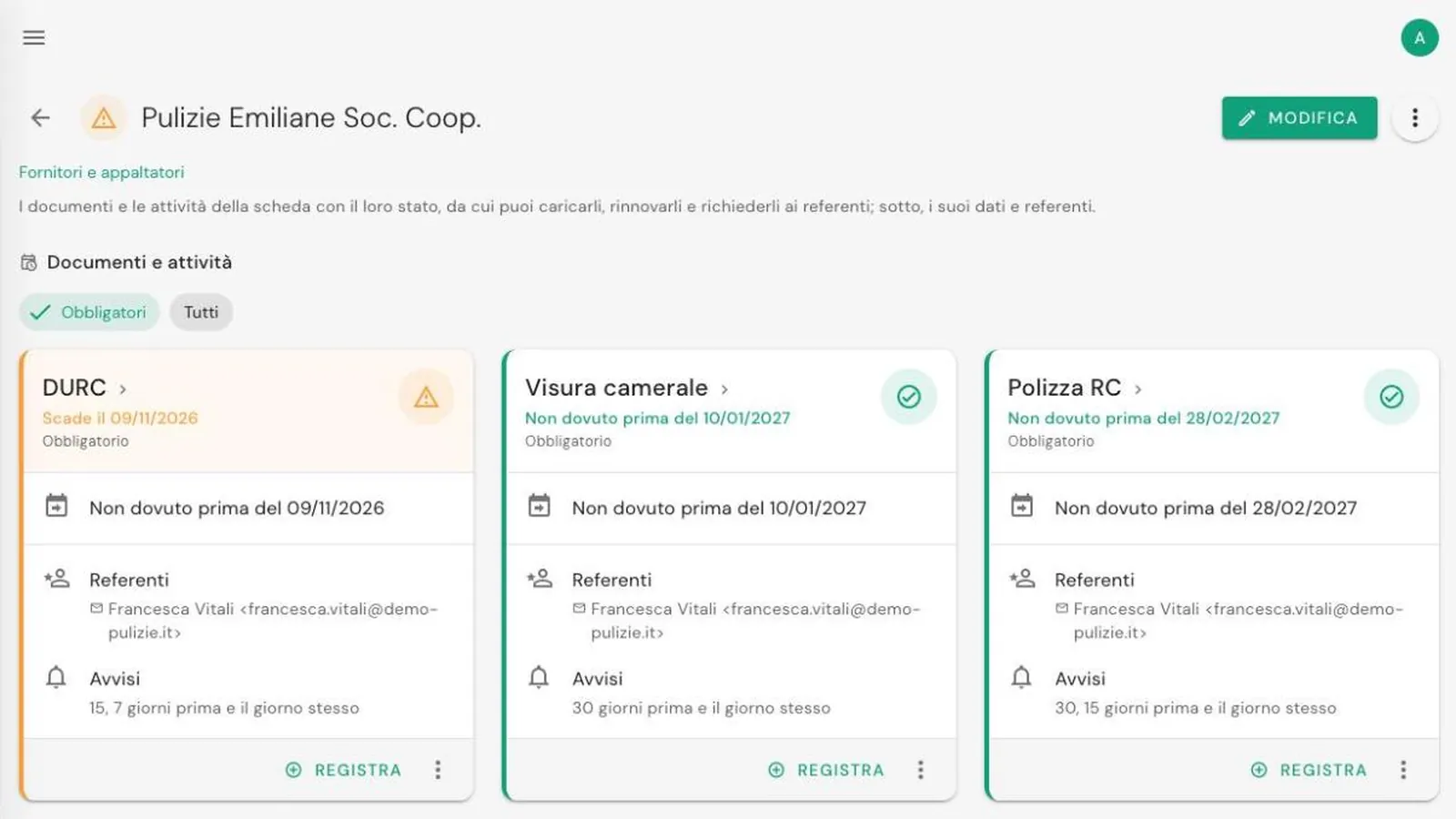
The DURC expires every 120 days, insurance policies every year, training certificates every few years. Asking for them by email, saving them in a folder and updating the tracker by hand is the job that gets postponed most often. With JustFlag.it the supplier uploads the document directly, and all you do is approve it.
The flow has four steps. The screenshots come from our demo account, so the sample data is in Italian.
1. Assign a referent to the supplier
On the supplier's record add the person who handles their documents as referent: name and email. From then on they also receive the deadline notices for their record. If you haven't done this yet, see the guide to notices and referents.
2. Send the upload request
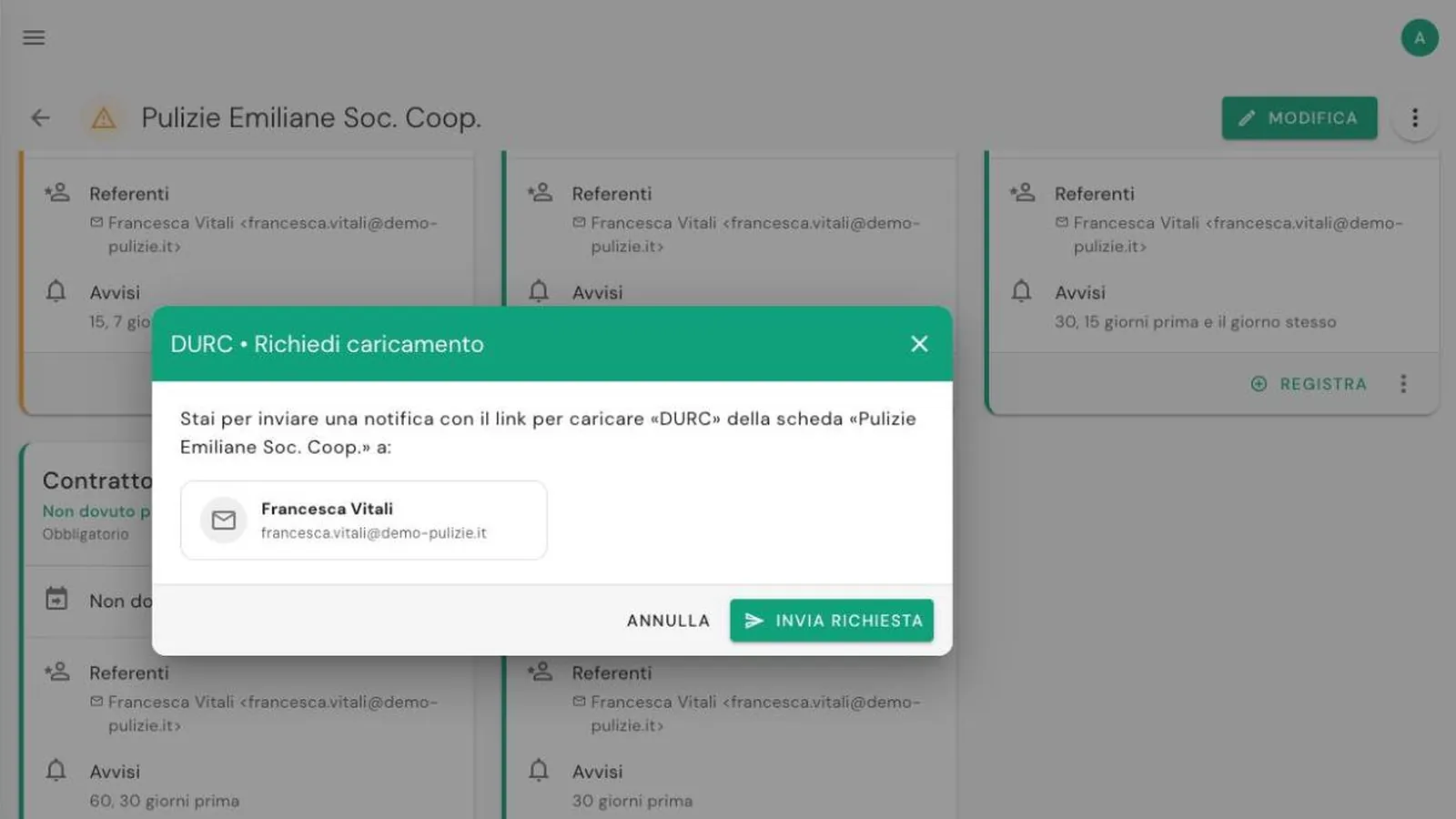
Open the supplier's record and, on the deadline to renew, open the ⋮ → Request Upload menu. The dialog shows who will receive the request. Press Send request.
The referent receives an email with a button to update the deadline, in the language set for your account.
3. The supplier uploads the document
The link opens a page where the supplier, without signing up:
- enters the issue date and the expiration date;
- attaches the file, for example the DURC PDF;
- adds a note, if needed.
After sending, they see a confirmation: what they entered will be checked before it is recorded.
4. Verify and approve
The document lands in To approve, flagged by a dot in the menu and a counter on the dashboard.
With Verify you open the file, check the dates, correct them if needed, and press Approve or Reject. Once approved, the deadline is updated and the record turns green again.
In short
- Assign a referent to the supplier.
- On the deadline: ⋮ → Request Upload → Send request.
- The supplier opens the link, enters the dates and uploads the file.
- You find it in To approve, verify it and approve it.
To know which documents to ask for and how often, read the guide to DURC and supplier documents.
Frequently asked questions
Does the supplier need to sign up to upload the document?
No. They receive an email with a personal link that opens the upload page: they enter the dates, attach the file and send it.
Is a document uploaded by a supplier valid straight away?
No. It goes to To approve: you check it, can correct the dates, and then approve or reject it.
Can I use the same process with employees?
Yes. It works with any referent: an employee can upload a training certificate or medical check in the same way.