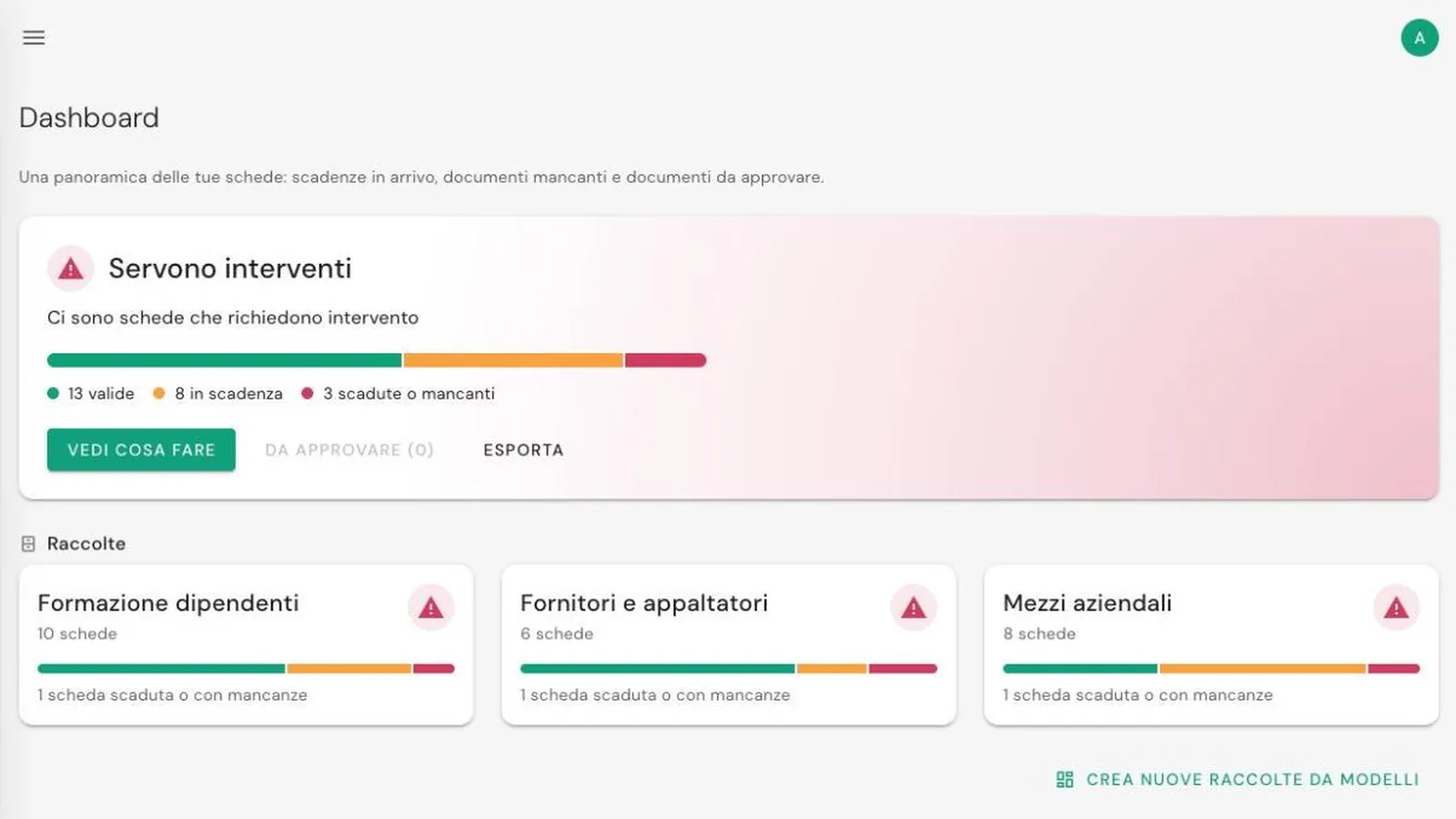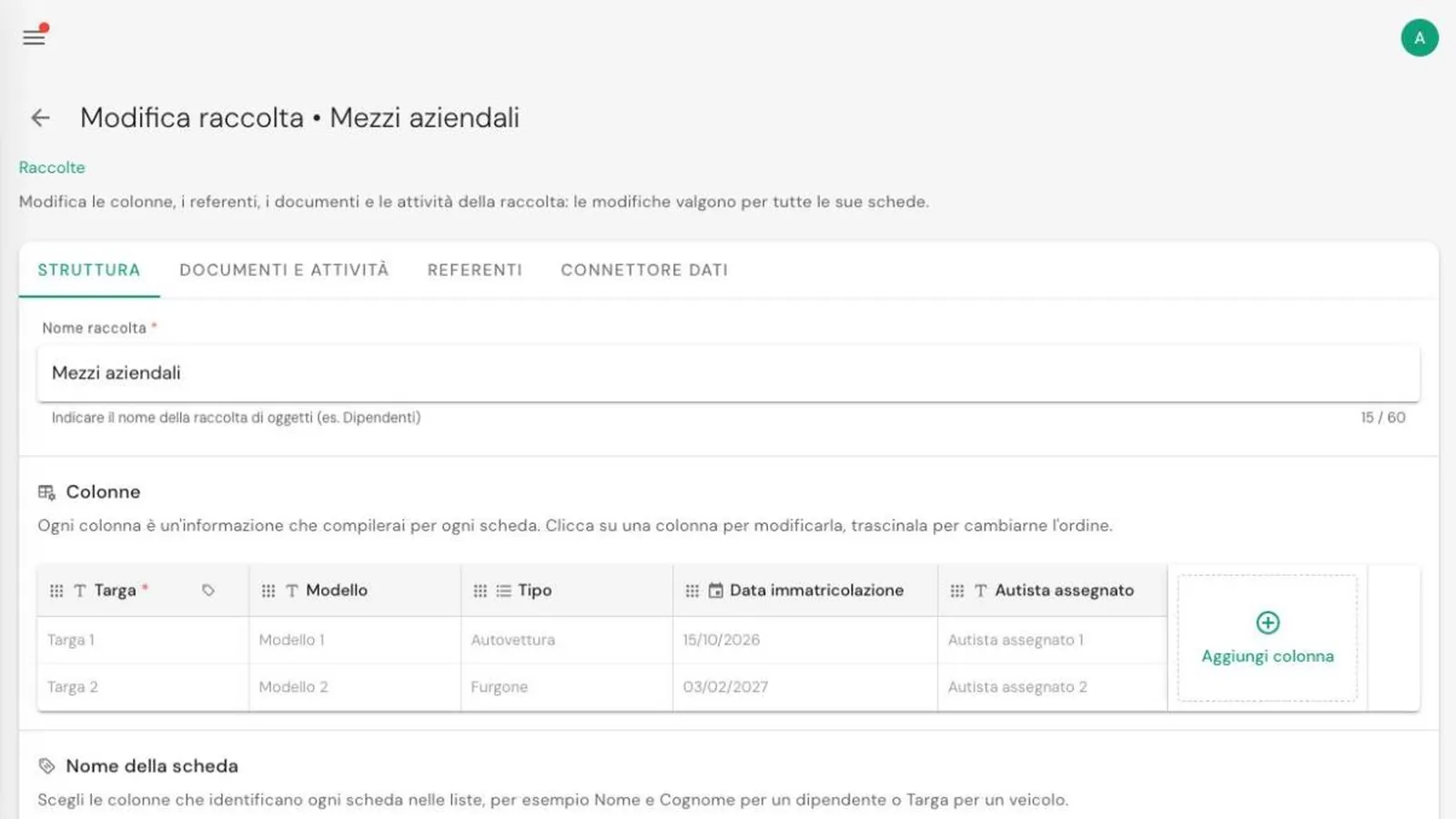
You can work with JustFlag.it from your AI assistant too. Write "which deadlines do I have this month?" or "load this spreadsheet into the Company vehicles collection" and the assistant reads and updates your collections for you. The connection is included in every plan.
What MCP is
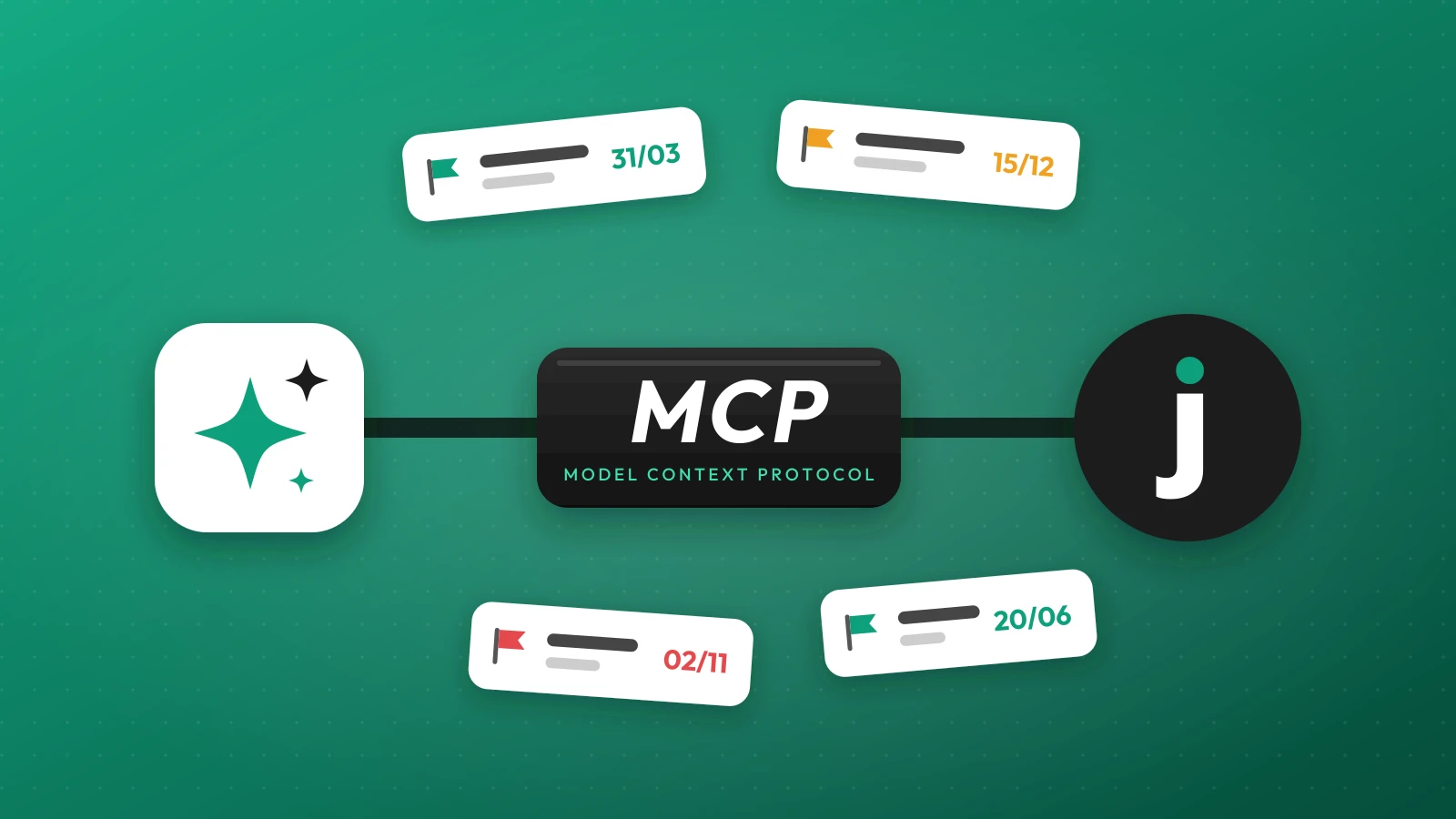
The Model Context Protocol (MCP) is the open standard AI assistants use to connect to applications. JustFlag.it has its own MCP server: you add it to your assistant once, and from then on you can ask about your deadlines as you would ask a colleague who knows the schedule.
It works with assistants that support remote MCP servers: Claude (web, Desktop app and Claude Code), ChatGPT, Cursor, VS Code and other compatible clients.
What you can ask
A few examples, written the way you would type them in a chat:
- "Which deadlines do I have in the next 30 days?"
- "Who has expired documents in the Employees collection?"
- "Add the inspection of van GF 482 KT expiring on March 31."
- "Postpone the check of forklift 3 by one week."
- "Create a Fire extinguishers collection linked to Customer sites."
The assistant can read collections, records, deadlines and the dashboard, and give you a temporary link to download a document. With write permission it creates and edits records, adds documents (the previous version stays in the history), changes dates and notes and postpones deadlines. Administrators can also create collections, from scratch or from JustFlag.it templates, and extend them with new columns, deadlines and values.
How to connect it
- Get the address. It is your web app address with
/mcpat the end, for examplehttps://your-company.justflag.it/mcp. - Add it to your assistant. In your assistant's connectors or MCP servers section. The steps for each assistant are on the AI assistant page.
- Sign in and allow. The JustFlag.it page opens: you sign in with your credentials and second factor, check which application is asking for access and what it will be able to do, and choose Allow.
Usually the assistant asks for read access first. When it needs to write, it brings you back to the consent page and you decide.
Importing a spreadsheet without surprises
The first data load is where the assistant saves the most time. You give it your Excel or CSV file and it:
- reads the columns and proposes how to map them to the collection;
- runs a simulation: how many records it creates, how many it updates and which rows have errors, with the reason;
- imports only after your ok.
Existing records are recognised by their key fields, such as the licence plate or the serial number: importing the same file again updates, it does not duplicate. Records missing from the file stay as they are: the import never archives or deletes anything.
Your permissions, nothing more
The assistant works with your account: it only sees and changes what you see and change in the web app, collection by collection. Also:
- connecting it requires your credentials and two-factor authentication;
- you grant permissions one at a time: read, write and, for administrators only, creating collections;
- it does not delete documents and does not delete records on its own: to delete a record it gives you a link to the web app, valid for 10 minutes, where you confirm;
- it does not touch users, passwords, subscription or organization settings;
- every change is recorded in the activity log, with the name of the connected application.
The answers and the data the assistant reads go through the service of the assistant you use, under its terms. To remove access go to Profile → Security → Connected apps and press Revoke: it closes immediately.
Frequently asked questions
Does the AI assistant connection cost extra?
No. It is included in every JustFlag.it plan. You only need an assistant that supports remote MCP servers, such as Claude, ChatGPT, Cursor or VS Code.
Can the assistant see every collection of the company?
No. It works with the permissions of the user who connects it: it only sees and changes the collections and records that user sees and changes in the web app.
Can the assistant delete records or documents?
No. It does not delete documents and does not delete records on its own: if your plan has no archive, it gives you a link to the web app, where you review the record and confirm the deletion yourself.
How do I remove an assistant's access?
In the web app, under Profile → Security → Connected apps, with Revoke. Access closes immediately, and it also closes when you change your password.